Physical Address
304 North Cardinal St.
Dorchester Center, MA 02124
Physical Address
304 North Cardinal St.
Dorchester Center, MA 02124
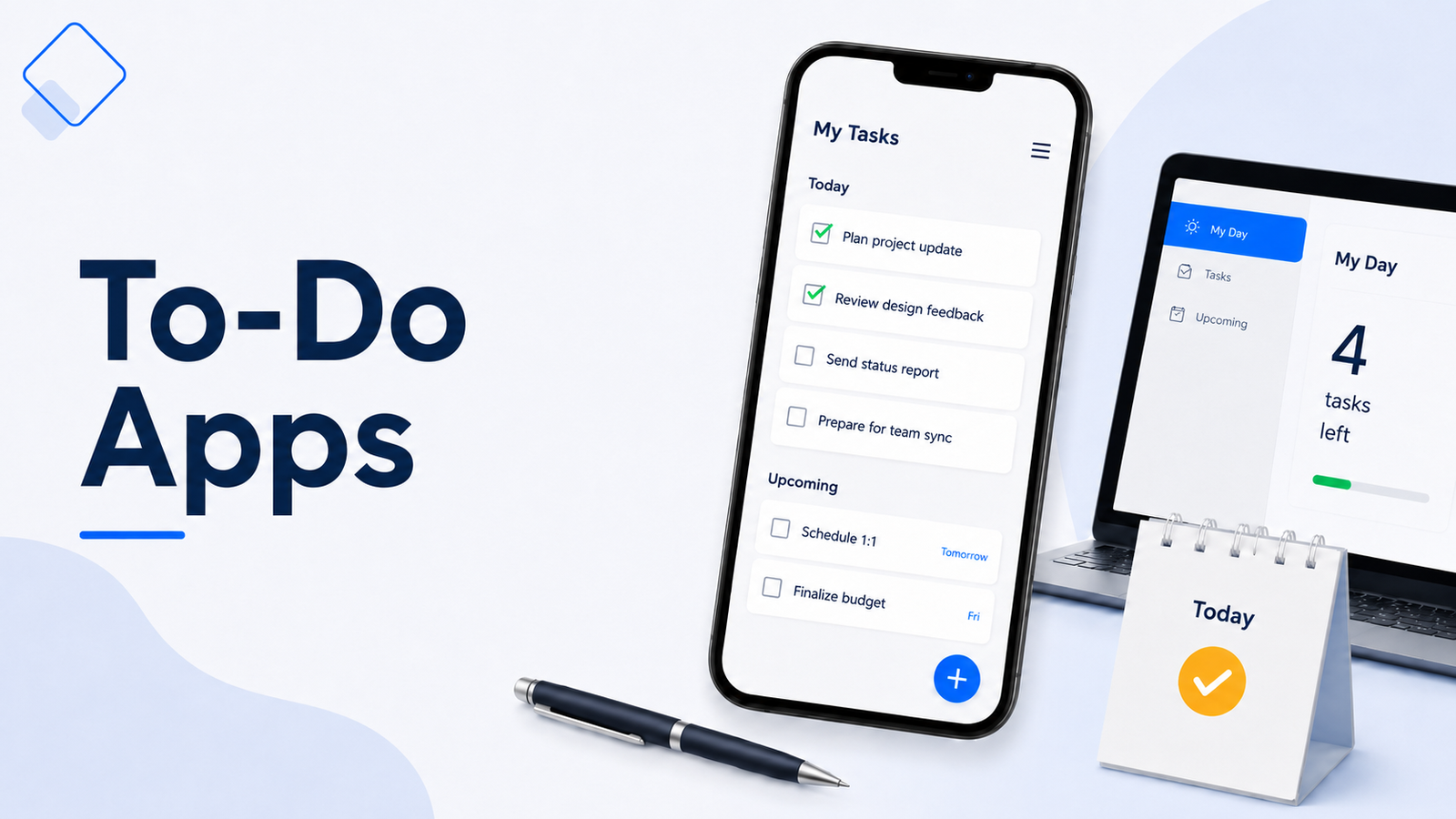
Choosing a to-do list app sounds simple until you actually start comparing them. Some apps are made for quick daily checklists. Some are better for recurring reminders, shared work, calendar planning, or full task management. A feature that feels useful for one person can feel like clutter for someone else.
That is why the best to-do list app is not the same for everyone.
If you only need a place to write down today’s tasks, a simple free app may be enough. If you manage work projects, deadlines, follow-ups, and personal reminders together, you may need something with projects, labels, due dates, and better organization.
The right app should fit the way your tasks show up during the day. It should help you capture things quickly, find them later, and decide what needs attention next without making your system harder to maintain.
Here are some of the best to-do list apps to consider, based on how you work, plan, and manage daily tasks.
| App | Best For | Plan |
|---|---|---|
| Todoist | Balanced work and personal task management | Free/Paid |
| Microsoft To Do | Microsoft and Outlook users | Free |
| TickTick | Tasks, calendar, habits, and focus timer | Free/Paid |
| Google Tasks | Simple tasks inside Google tools | Free |
| Apple Reminders | Built-in task lists for Apple users | Free |
| Any.do | Simple reminders and daily planning | Free/Paid |
| Things | Premium personal task management for Apple users | Paid |
| Trello | Visual task boards and workflow stages | Free/Paid |
A free app is enough if you only need a simple checklist, reminders, or basic recurring tasks. A paid plan may be worth considering when you need advanced filters, calendar views, collaboration, automation, or more ways to organize work across projects.
The best to-do list app is not always the app with the longest feature list.
It should fit the way you already handle tasks. If you only need a simple daily checklist, a lightweight app may be better than a full task management system. If you manage deadlines, recurring tasks, work projects, and personal reminders together, you may need more structure.
Start by asking what you actually need the app to do.
Do you want quick reminders? Do you need recurring tasks? Do you want to organize tasks by project? Do you need a calendar view? Will you use it mostly on your phone, desktop, or both?
A good to-do list app should make it easy to:
Try not to choose an app only because it looks popular. A powerful app can become distracting if you spend more time adjusting the system than completing the tasks.
For most people, the right choice is the app that feels simple enough to open every day, but flexible enough to handle tasks as life and work get busier.
Best for: Balanced work and personal task management
Plan: Free/Paid
Works on: Web, iOS, Android, Windows, macOS, Linux, browser extensions, and wearables
Todoist is a strong choice if you want a to-do list app that can stay simple for daily tasks but also handle more structure when your work grows.
You can use it for personal errands, work projects, recurring reminders, follow-ups, and weekly planning. It gives you a clean place to capture tasks, then organize them by projects, due dates, labels, filters, and priority levels.
Todoist may offer more features than a basic checklist app, but that flexibility can be useful if you expect your task system to grow.
Choose Todoist if you want a flexible to-do list app that can handle daily tasks, projects, recurring reminders, and simple task organization across devices.
Best for: Microsoft and Outlook users
Plan: Free
Works on: Web, iOS, Android, and Windows
Microsoft To Do is a simple to-do list app for people who already use Microsoft tools. It works well for daily tasks, work reminders, shopping lists, follow-ups, and basic planning.
One of its biggest advantages is its connection with Outlook Tasks. Microsoft says To Do works with Outlook Tasks, so you can manage tasks in one place, and it also syncs across the web, iOS, Android, and Windows devices.
Microsoft To Do is best for simple task management. It may feel limited if you want advanced filters, detailed project views, built-in time tracking, habit tracking, or a more powerful task workflow.
Choose Microsoft To Do if you want a free to-do list app that works smoothly with Outlook, Windows, and Microsoft 365 without adding another complicated tool to your day.
Best for: tasks, calendar planning, habits, and focus timer
Plan: Free/Paid
Works on: Web, iOS, Android, Windows, macOS, Linux, Apple Watch, and browser extensions
TickTick is a good to-do list app if you want more than a simple checklist. It brings tasks, reminders, calendar planning, habit tracking, and a Pomodoro-style focus timer into one app. TickTick describes itself as a task management app for staying organized across tasks, schedules, and reminders.
It can work well for people who want to manage daily tasks and also build routines around focus, habits, and weekly planning.
TickTick includes more features than a plain checklist app, so it works best if you want tasks, planning, habits, and focus tools together. Some of its best features, such as advanced calendar views, more customization, and deeper productivity tracking, are more useful on the paid plan.
Choose TickTick if you want a to-do list app that combines task management, calendar planning, habits, and focus tools in one place.
Best for: simple tasks inside Google tools
Plan: Free
Works on: Web, iOS, Android, Gmail, and Google Calendar
Google Tasks is a good choice if you already use Gmail, Google Calendar, or Google Workspace and want a simple place to manage tasks without setting up a separate system.
Google Tasks keeps things simple, which can be useful if you want a lightweight task list inside Google tools. You can create task lists, add details, use subtasks, set due dates, and keep your tasks synced across devices. Google also says Tasks works with Gmail and Calendar, which makes it useful if many of your tasks start from emails or scheduled work.
Google Tasks is best for simple task lists. If you later need advanced labels, filters, project views, collaboration, or deeper task planning, you may find a more feature-rich app helpful.
Choose Google Tasks if you already work inside Gmail and Google Calendar and want a simple, free to-do list app that stays close to the tools you use every day.
Best for: Apple users who want a built-in task app
Plan: Free
Works on: iPhone, iPad, Mac, Apple Watch, and iCloud
Apple Reminders is a good to-do list app if you already use Apple devices and want something built in, simple, and easy to access.
You can create lists for work, errands, personal tasks, shopping, or routines. Apple Reminders also supports subtasks, time-based alerts, location-based alerts, attachments, and list organization features, which makes it more useful than a basic checklist.
Apple Reminders is best if you stay mostly inside the Apple ecosystem. It may not be the right fit if you regularly switch between Apple, Windows, Android, and other work tools.
Choose Apple Reminders if you use an iPhone, iPad, or Mac and want a free to-do list app that is already available, easy to use, and strong enough for everyday reminders.
Best for: simple reminders and daily planning
Plan: Free/Paid
Works on: Web, iOS, Android, Windows, Mac, browser extensions, Gmail, and wearables
Any.do is a good to-do list app if you want a simple place to manage tasks, reminders, calendar items, and daily planning without building a complex system.
It is especially useful if you like being prompted to review your day. Any.do includes task lists, calendar features, a daily planner, reminders, subtasks, widgets, and shared lists. It also highlights its “Plan my Day” style feature for scheduling tasks and keeping daily work visible.
Any.do is strongest when you want reminders and daily planning support. If you prefer detailed project views, advanced filters, or a more structured work system, Todoist, TickTick, or Trello may feel more flexible.
Choose Any.do if you want a clean to-do list app for reminders, daily planning, shared lists, and simple task management without setting up a complicated workflow.
Best for: polished personal task management for Apple users
Plan: Paid
Works on: Mac, iPhone, iPad, Apple Watch, and Apple Vision Pro
Things is a premium to-do list app for people who use Apple devices and want a clean, polished task manager without too much visual clutter.
It is designed more for personal productivity than team collaboration. You can organize tasks into areas, projects, headings, checklists, deadlines, and reminders. It also has a clean “Today” view, which makes it easier to see what needs attention without digging through every project. Cultured Code lists Things for Mac, iPhone, Apple Watch, iPad, and Vision Pro, with separate App Store pricing for each device type.
Things is not the best choice if you use Windows or Android, because it is focused on the Apple ecosystem. It is also a paid app, and you may need to buy separate versions for Mac, iPhone, and iPad depending on how you want to use it.
Choose Things if you use Apple devices and want a polished, personal to-do list app that feels simple, organized, and pleasant to use every day.
Best for: visual task boards and workflow stages
Plan: Free/Paid
Works on: Web, iOS, Android, Windows, and macOS
Trello is different from a traditional to-do list app because it uses boards, lists, and cards instead of a plain checklist. This makes it useful if you like seeing tasks move through stages, such as To Do, In Progress, and Done.
You can use Trello for personal planning, content calendars, project workflows, team tasks, or any work that feels easier to manage visually. Trello’s free plan includes unlimited cards and up to 10 boards per Workspace, while paid plans add more boards, advanced checklists, custom fields, and extra project views.
Trello may feel too visual if you only want a simple daily checklist. It is better for task boards and workflows than for quick personal reminders. Some advanced features, such as calendar, timeline, table, and dashboard views, are part of higher plans.
Choose Trello if you prefer moving task cards across stages instead of working from a plain list. It is a good fit for visual planners, small projects, content workflows, and simple team task tracking.
A free to-do list app is enough for many people when they are getting started.
If you only need a place to write tasks, set basic reminders, create simple lists, or track daily errands, free apps like Microsoft To Do, Google Tasks, and Apple Reminders can be a good starting point.
Paid plans become more useful when your tasks need more structure.
For example, you may want advanced filters, calendar views, collaboration options, custom fields, automation, recurring task controls, or better ways to organize work across multiple projects. Apps like Todoist, TickTick, Any.do, and Trello offer free versions, but some of their stronger features are usually part of paid plans.
Before upgrading, start with the free version and see how the app fits your routine. If you keep opening it, updating tasks, and reviewing your list, then premium features may be worth considering.
If you are starting with a simple daily checklist, begin with the free plan first. As your tasks grow, upgrading can make sense if premium features help you save time, organize projects, or manage reminders more easily.
The best to-do list app is not always the most expensive one. It is the one that fits your workflow and gives you enough structure to manage tasks consistently.
The easiest way to choose a to-do list app is to match it with how you already work.
| If you want… | Choose |
|---|---|
| A balanced app for work and personal tasks | Todoist |
| A free app for Outlook, Windows, or Microsoft 365 | Microsoft To Do |
| Tasks, calendar planning, habits, and focus timer in one place | TickTick |
| A simple task list inside Gmail and Google Calendar | Google Tasks |
| A built-in task app for iPhone, iPad, or Mac | Apple Reminders |
| Simple reminders and daily planning prompts | Any.do |
| A polished personal task manager for Apple devices | Things |
| Visual task boards with cards and workflow stages | Trello |
For most people, the best starting point is the app that fits the tools they already use. If your task list becomes harder to manage later, you can move to an app with more structure, views, reminders, or project features.
A to-do list app should make your task system easier to use, not harder to maintain.
Start with one main place for your tasks. If you spread tasks across multiple apps, notes, emails, and notebooks, it becomes harder to know which list to trust.
Keep your setup simple at first. Create only the lists or projects you actually need, such as:
You can always add more structure later, but starting with too many categories can make the app feel messy before it becomes useful.
Use due dates carefully. Not every task needs a date. If you add due dates to everything, your “today” view can quickly become overloaded. Save dates for tasks that are truly time-sensitive or need a reminder.
It also helps to review your app once a day. Clear completed tasks, move unfinished items, and remove anything that no longer matters. A short review keeps your task list from becoming a digital storage box for old intentions.
The goal is not to use every feature. The goal is to build a simple system you can keep using.
The best to-do list app is not the same for everyone.
A simple free app may be enough if you only need basic lists, reminders, and daily tasks. A more advanced app can be worth it when you want better organization, recurring tasks, calendar views, collaboration, or a cleaner way to manage work and personal tasks together.
The right app should make your tasks easier to capture, review, and complete. Choose the one you will actually open, update, and trust when your day gets busy.
The best to-do list app depends on how you manage tasks. Todoist is a strong overall choice for many people because it works well for both simple lists and more organized task management. Microsoft To Do, TickTick, Google Tasks, and Apple Reminders may be better depending on the tools you already use.
Microsoft To Do is one of the best free to-do list apps, especially if you use Outlook, Windows, or Microsoft 365. Google Tasks and Apple Reminders are also good free options if you want a simple task list inside the Google or Apple ecosystem.
Microsoft To Do is better if you want a free, simple app that works well with Outlook and Microsoft tools. Todoist is better if you want more advanced organization, such as projects, labels, filters, recurring tasks, and stronger cross-platform task management.
TickTick may be better if you want tasks, calendar planning, habit tracking, and a focus timer in one app. Todoist may be better if you prefer a cleaner task manager with strong organization and fewer extra productivity features.
A to-do list app is worth using if it helps you capture tasks quickly, set reminders, and review your day more consistently. The app should make your task list easier to manage, not more complicated.
Use a paper list if you only need a simple daily checklist. Use a to-do list app if you need reminders, recurring tasks, search, device sync, or a better way to organize work and personal tasks together.